Configuring APN Settings on Apple iOS
Important — Please Read Before Installing
Apple iOS devices are unique in that APN settings cannot be entered manually through the Settings screen. Instead, you must download and install a custom APN configuration profile.
It is vital that your mobile data plan is set to KeySIM at the point you install the profile. This is how Apple determines which SIM card to apply the profile to. Installing the profile while a different SIM is selected as the data SIM will result in the APN being applied to the wrong SIM card.
Download KeySIM APN Profile
Download the custom configuration profile for Apple iOS. Make sure your mobile data plan is set to KeySIM before installing.
Download APN Profile (.mobileconfig)Installation Steps
Set your mobile data plan to KeySIM, then tap the download button above
First go to Settings → Mobile Data → Mobile Data Plan and select your KeySIM card. Then tap the Download APN Profile button above. A Profile Downloaded confirmation popup will appear — tap Close and open your Settings app.
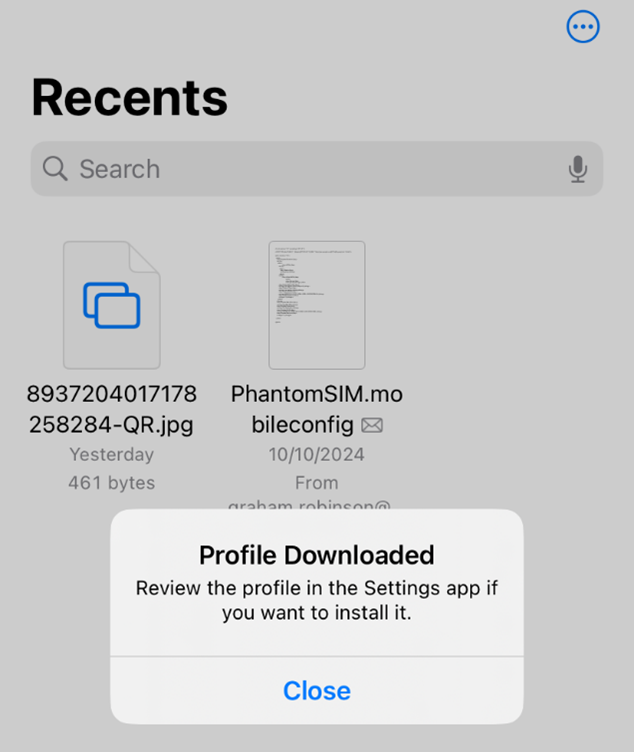
Open Settings and tap Profile Downloaded
Open the Settings app. You will see a new Profile Downloaded banner near the top — tap it to proceed to the installation screen.
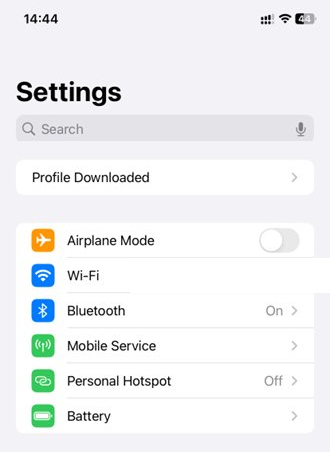
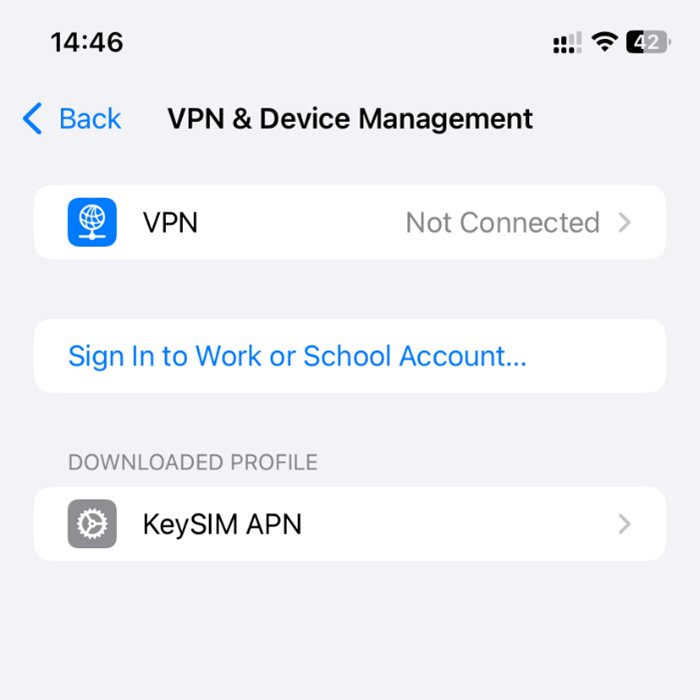
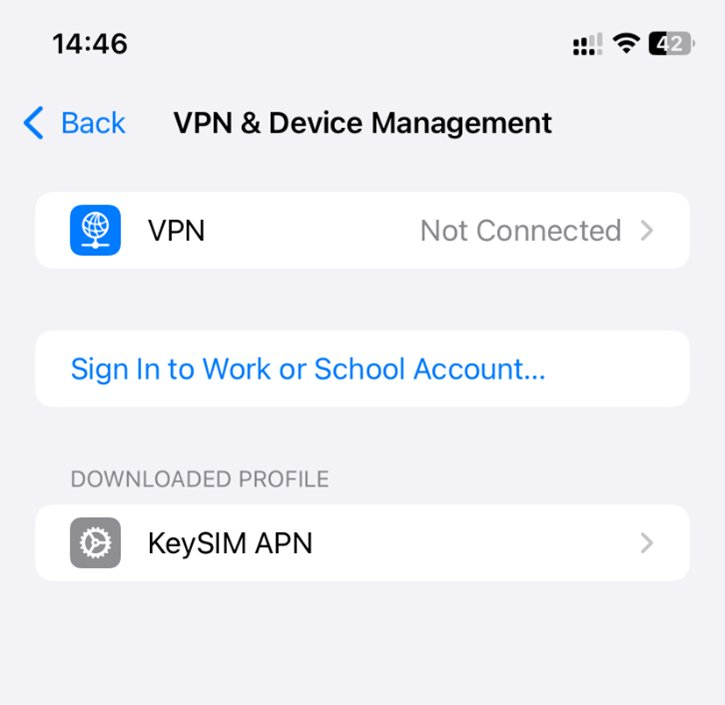
Tap the KeySIM APN profile under Downloaded Profile
You will be taken to the VPN & Device Management screen where you will see the KeySIM APN profile listed under Downloaded Profile. Tap it to open the installation screen.
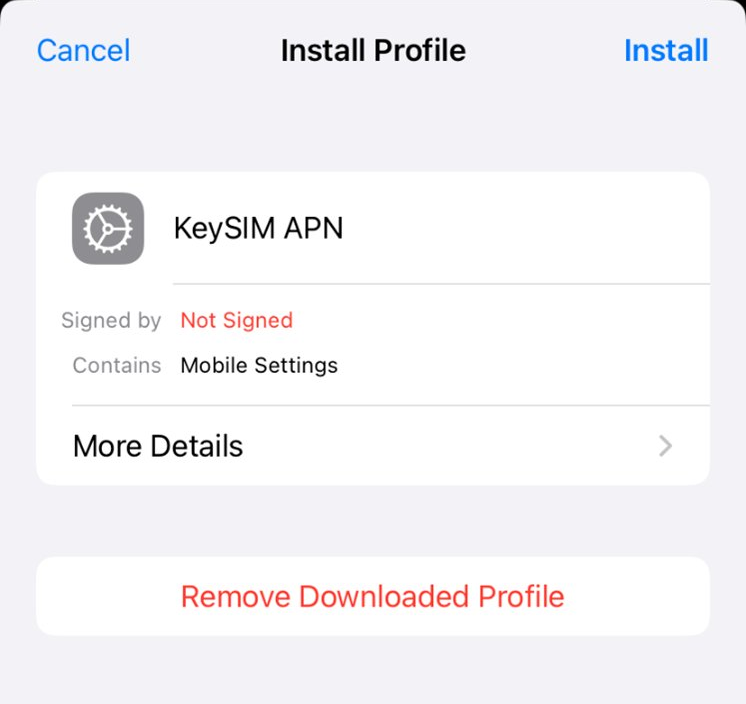
Tap Install in the top-right corner
The Install Profile screen will show the KeySIM APN profile details. Tap Install in the top-right corner to proceed. You may be prompted to enter your device passcode to confirm.
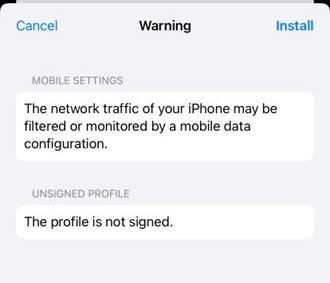
Review the warning and tap Install to confirm
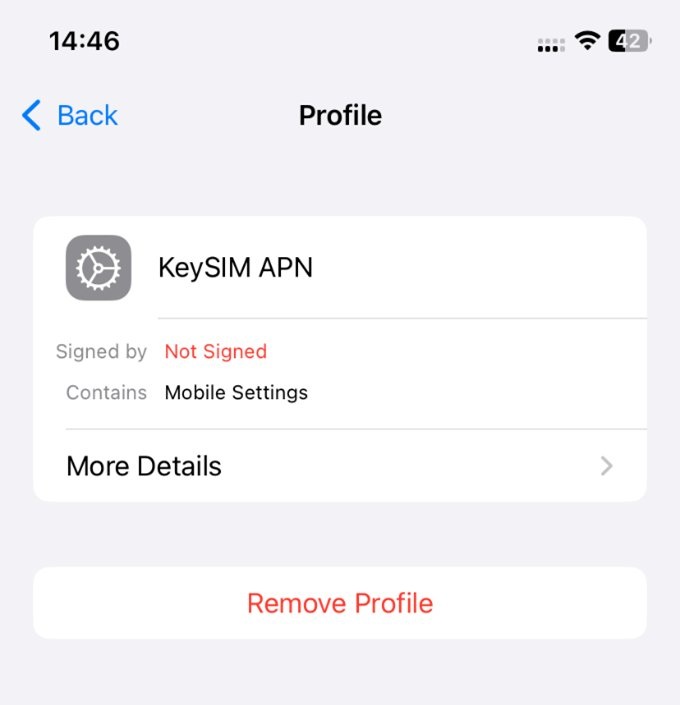
iOS will display a Warning screen noting the profile is unsigned and that network traffic may be filtered by a mobile data configuration. This is expected — the profile only sets the APN name to key and does not monitor or intercept your data. Tap Install in the top-right to complete the installation.
How to Remove the APN Profile
If you need to remove the KeySIM APN profile — for example when switching to a different SIM card — follow the steps below.
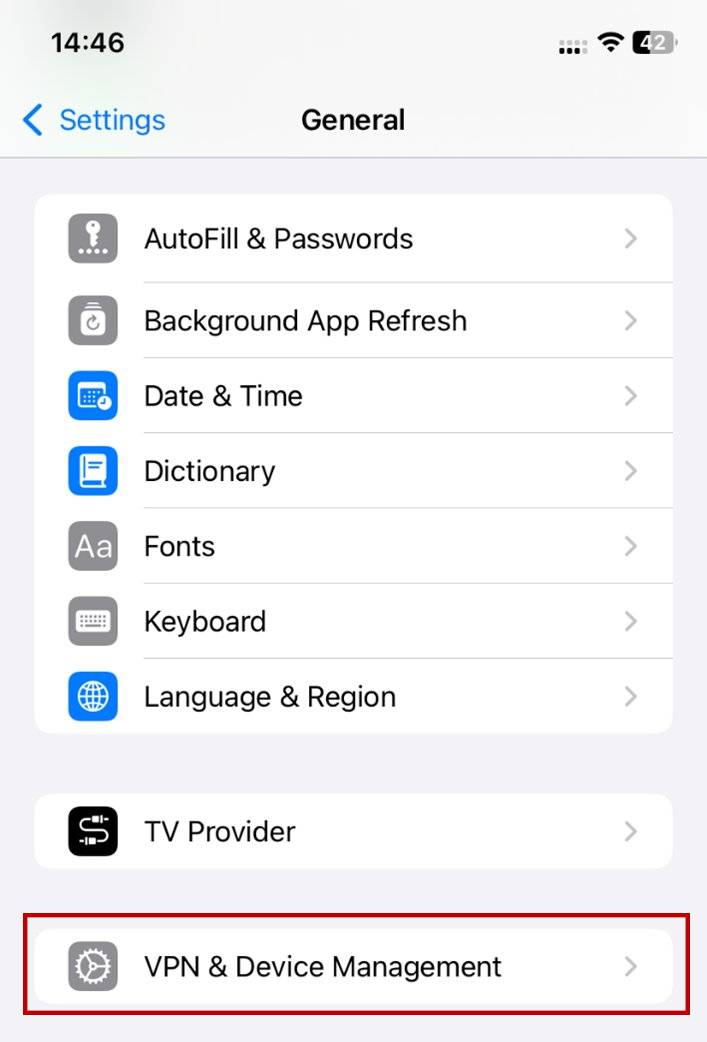
Go to Settings → General and tap VPN & Device Management
Open Settings, scroll down and tap General. Scroll to the bottom of the General menu and tap VPN & Device Management.
Tap the KeySIM APN profile
On the VPN & Device Management screen you will see the KeySIM APN profile listed. Tap it to open the profile details.
Tap Remove Profile and confirm
Tap the red Remove Profile button and confirm when prompted. The APN profile will be removed immediately from your device.