
Configuring APN Settings on Teltonika Routers
Teltonika RUT routers are configured through the router's own web interface. Follow the steps below to disable auto-APN and set the KeySIM APN manually.
Keep a record of your passwords. When you log in for the first time you'll be prompted to set a new password. Keep a record of both the default password and your new password — you'll need them if you ever have to perform an SMS restore. See our Teltonika SMS Commands guide for more information.
1
Connect to the router and log in
Connect locally to the router using an Ethernet cable or WiFi, then enter the router's IP address (printed on the device label) into your browser. The default IP address for RUT routers is 192.168.1.1. Log in using the default username and password from the label.
2
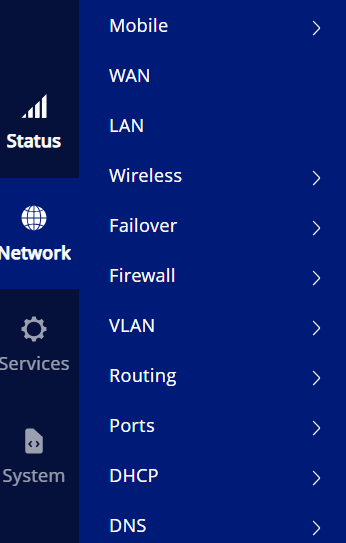
Open the Network tab under Status
From the router's dashboard, click the Network tab under Status.
3
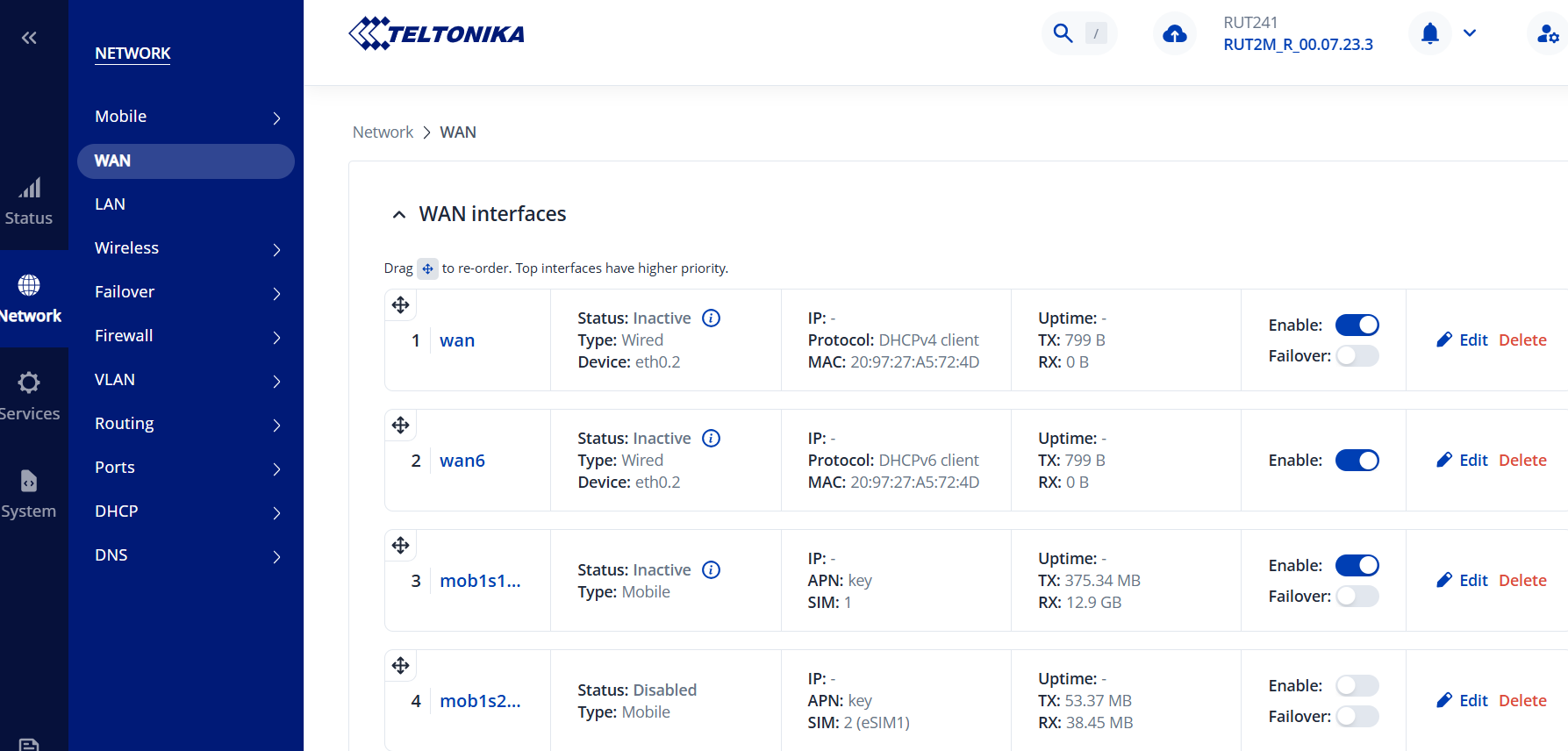
Open WAN and select the mobile interface
Click WAN, then select the relevant mobile interface — normally mob1s1a1 if KeySIM is your primary SIM.
4
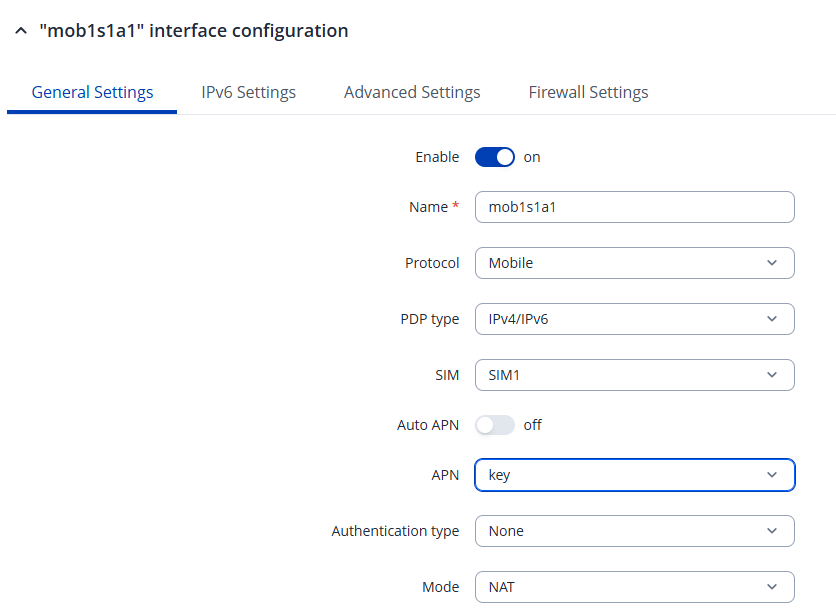
Disable auto APN and enter the APN key
In General settings, disable Auto APN and enter key as the APN. Leave Authentication Type as NONE and Mode as NAT.
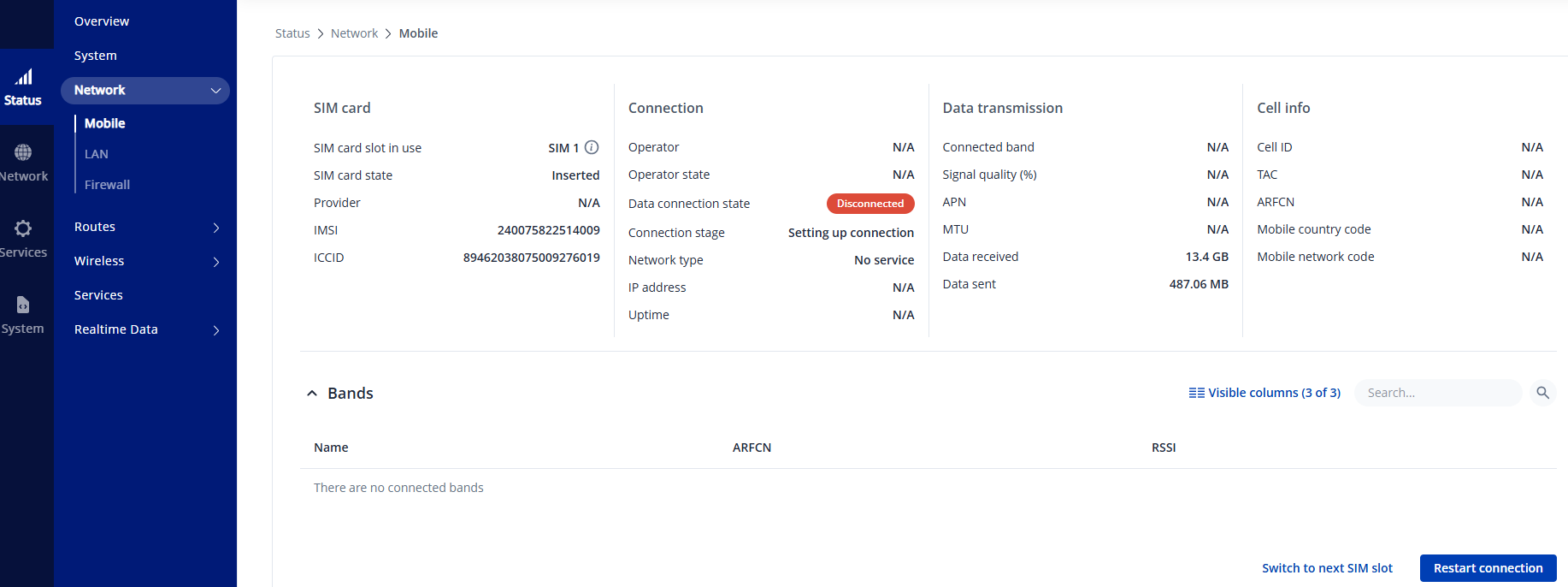
Not connecting automatically? If the device doesn't connect after updating the APN, go to Status → Network → Mobile and click Restart Connection in the bottom right-hand corner.
All done! Your Teltonika router should now connect using the KeySIM APN.