Configuring Roaming and APN Settings on ZTE Routers
There are two ways to access your ZTE router's settings and update the roaming and APN configuration: through the ZTELink app, or by connecting to the router's webpage using its IP address. Both methods require you to be connected to the router's own WiFi network first.
Screenshots may vary slightly between ZTE models, but the settings values are the same across devices.
Method 1: Using the ZTELink App
Download the ZTELink app
Install ZTELink from the App Store or Google Play.

Connect to the ZTE WiFi
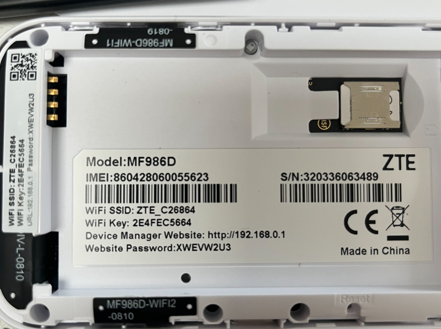
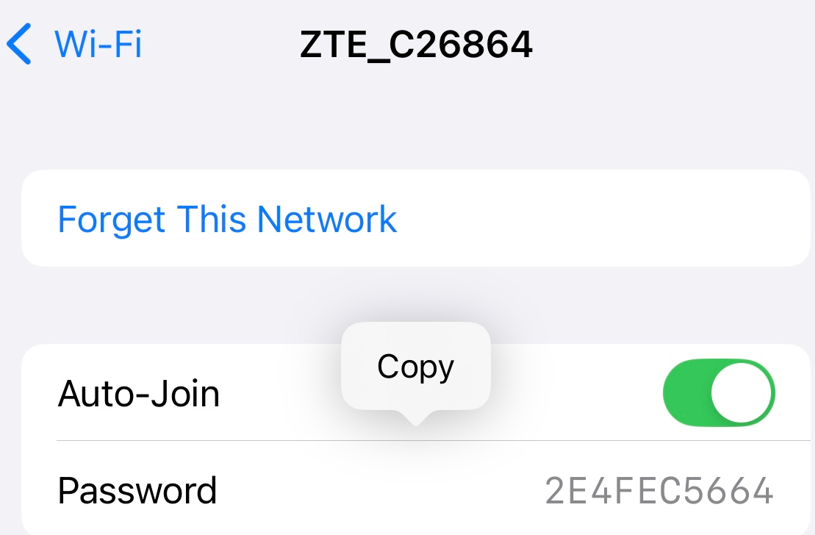
On your phone, connect to the router's WiFi network using the SSID and password from the device label.
Sign in and open Toolkit
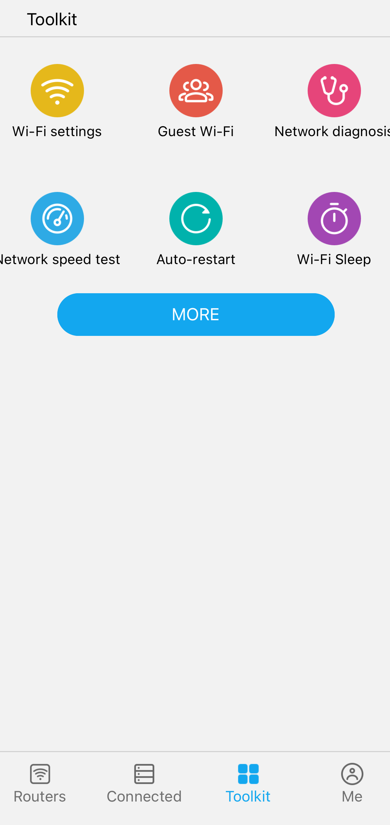
Open ZTELink and sign in using the website password from the device label — you must still be connected to the ZTE WiFi for sign-in to work. From the menu, select Toolkit.
Enable data roaming and open APN Settings
Tap More, enable data roaming, then tap APN Settings.
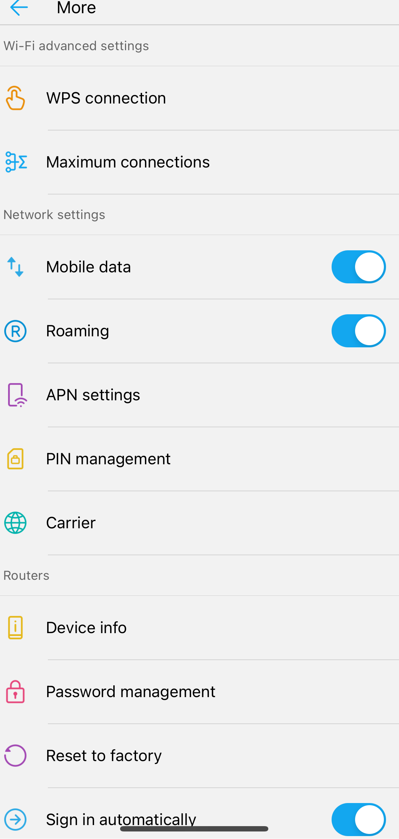
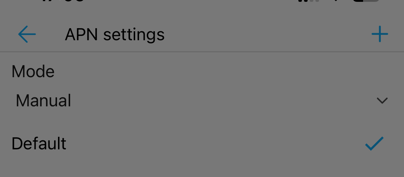
Switch APN mode from Auto to Manual
Change the APN mode setting from Auto to Manual so you can add a custom APN.
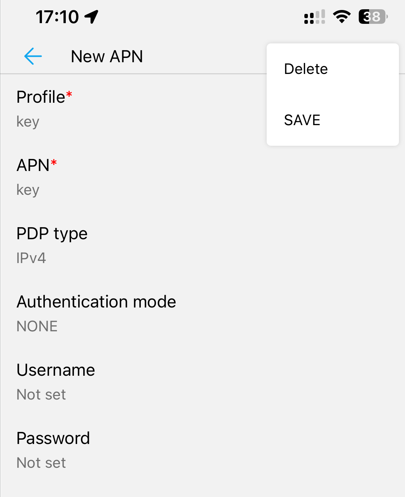
Add a new APN with the settings below and save
Add a new APN entry using the KeySIM APN settings in the table further down this guide, then save.
Method 2: Connecting via the Router's Webpage (IP Address)
Connect to the ZTE WiFi
Connect your phone or computer to the router's WiFi network.
Log in at the router's IP address
Enter the router's IP address (from the device label) into your browser's address bar, then log in using the website password. You'll notice there are two modes available — PC and Mobile.
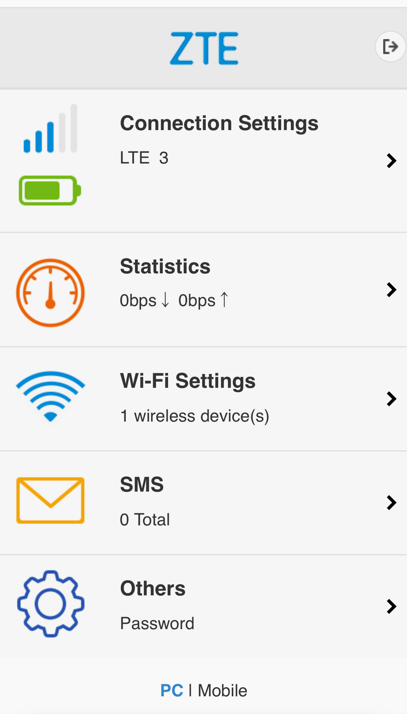
Enable roaming in Mobile mode
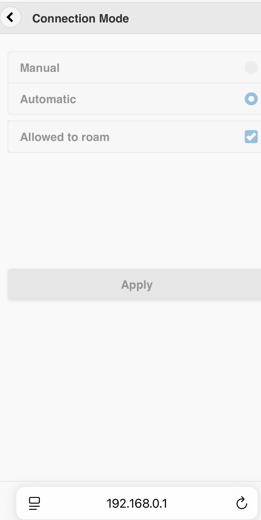
In Mobile mode, click the Connection Settings tab and tick Allowed to Roam.
Switch to PC mode
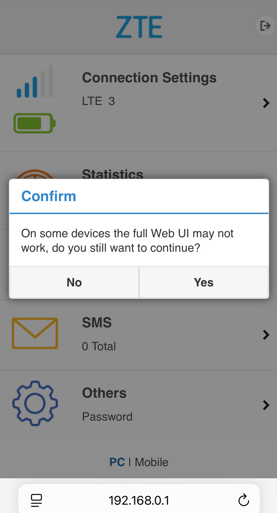
Click the PC link to switch modes, then click Yes to confirm on the message that appears.
Open 4G Settings
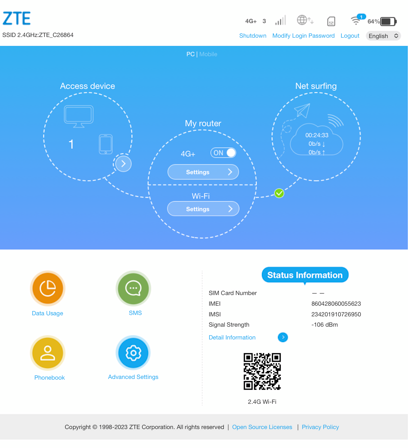
On the PC mode home screen, click the 4G Settings button.
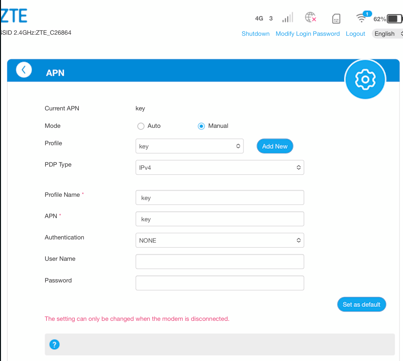
Click APN
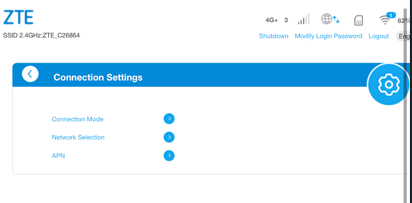
From the 4G Settings menu, click APN.
Add the new APN and set it as default
Click Manual, then Add New. Complete the details using the KeySIM APN settings below, click Save, then set the new APN as default.